- So far in this course we’ve been
- Creating data right in the Stata window:
gen - Downloading data from the internet directly into Stata:
sysuse - Opening data files where Stata knows to find them:
use
- Creating data right in the Stata window:
- Inputing and outputting data files on your own computer is not much more complicated, as long as you are working with a small number of files for a single project
- Things become more complicated when we have many files to clean, combine, and analyze
- Things become much more complicated when we want to share data and code with others
- But in this lesson we’ll learn how to do this effectively
Introduction to paths
- To use data stored on a computer we need to tell Stata where it is
- This is done using paths
- This is a description of the directories where our files are stored
- Let’s go to the course website and download some data
- https://jdavidm.github.io/learn-stata/materials/datasets
- This page contains all of the data we use in class
- Download
eth_allrounds_final.dtadata - If we click on this link it will download, but where did it download to
- Click on the arrow to ‘Show in Folder’
- The details will look different depending on the operating system
-
But, generally, across the top you’ll see the folder that things are stored in
- Go back to Stata
- If we try to load this data just using it’s filename it won’t work
use "eth_allrounds_final.dta", clear
- Returns the error
r(601), “file eth_allrounds_final.dta not found” -
That’s because it can’t find the file where we’ve tried to load it from
- Paths can be either relative or absolute
- We’ll start with absolute, which always describes exactly where something is on the computer
- Data file is stored in the
Downloadssubdirectory of ourHomedirectory Homedirectory varies by operating system- On Windows it is
/Users/username - On mac and Linux it is
/home/username - Within that is the
Downloadsdirectory
* osx/linux
    use     "/home/jdmichler/Downloads/eth_allrounds_final.dta", clear
- On Windows change
hometoUsers
* windows
    use     "C:/Users/jdmichler/Downloads/eth_allrounds_final.dta", clear
-
This successfully loads the data because we’ve told it exactly where the file is
- Folders/Directories are separate by
/with the file name at the end - Windows shows
\or\\as the separator, but/works on all operating systems so use it -
Include the file extension (the part after the
.) - Paths can also be relative
- Do this by not including a starting
/
* windows
    use             "Downloads/eth_allrounds_final.dta", clear
- “From where I am the Ethiopia file is in the Downloads subdirectory”
- The absolute & relative paths here are the same if Stata thinks it’s in
C:/Users/jdmichler/
Find out where you are
- To find out where Stata is use
pwd
* define working directory
    pwd
- “print working directory”
- The “working directory” is where the program starts from
Loading data
- For data in the working directory just use the file name
* windows
    use             "eth_allrounds_final.dta", clear
-
This is a relative path, because the file is in the working directory the only remaining piece is the name
- One way to ensure that a file is in the working directory is to, when given the chance, select the working directory as the place to download to
- In contemporary browsers, you are often not given this option because the OS has set the “Download” directory as the default
- In this case you need to copy the file from “Download” and move it to the working directory
- For data not in the working directory there are two options
- tell Stata where it is
- change the working directory to where it is
- Changing the working directory is common
- But this cause issues if we want to achieve reproducability
- Working directory is different on a different computer
- Someone else’s code files sets a different working directory
- But this cause issues if we want to achieve reproducability
- In general, using
cdmeans that your code will only work on a single computer - That’s bad, so we want to have the working directory set automatically and use relative paths
Projects
- The simplest way to do this is using Stata Projects in combination with a
project.dofile - Each project is a self-contained unit of work in a folder/directory
- Treat all locations as relative to that directory
- Can set-up the
project.dofile so that it sets the working directory automatically based on what computer it is on
Stata Projects
- Equivalent to an R Studio Project
- To create a Stata Project in Stata
- Click the “new do file editor” button (little notepad with pencil)
File->New->Project-> learn-stata (or whatever you want to call the Stata Project for this class)- Save the Stata Project in the Git repo for this course:
semester26 - Creates a Stata Project
.strpfile- Isn’t project itself
- Contains project info
- At the moment, there is nothing in our project folder
-
In the next lecture we will start putting files into the project
- For now, let’s walk through the different windows in a Stata Project
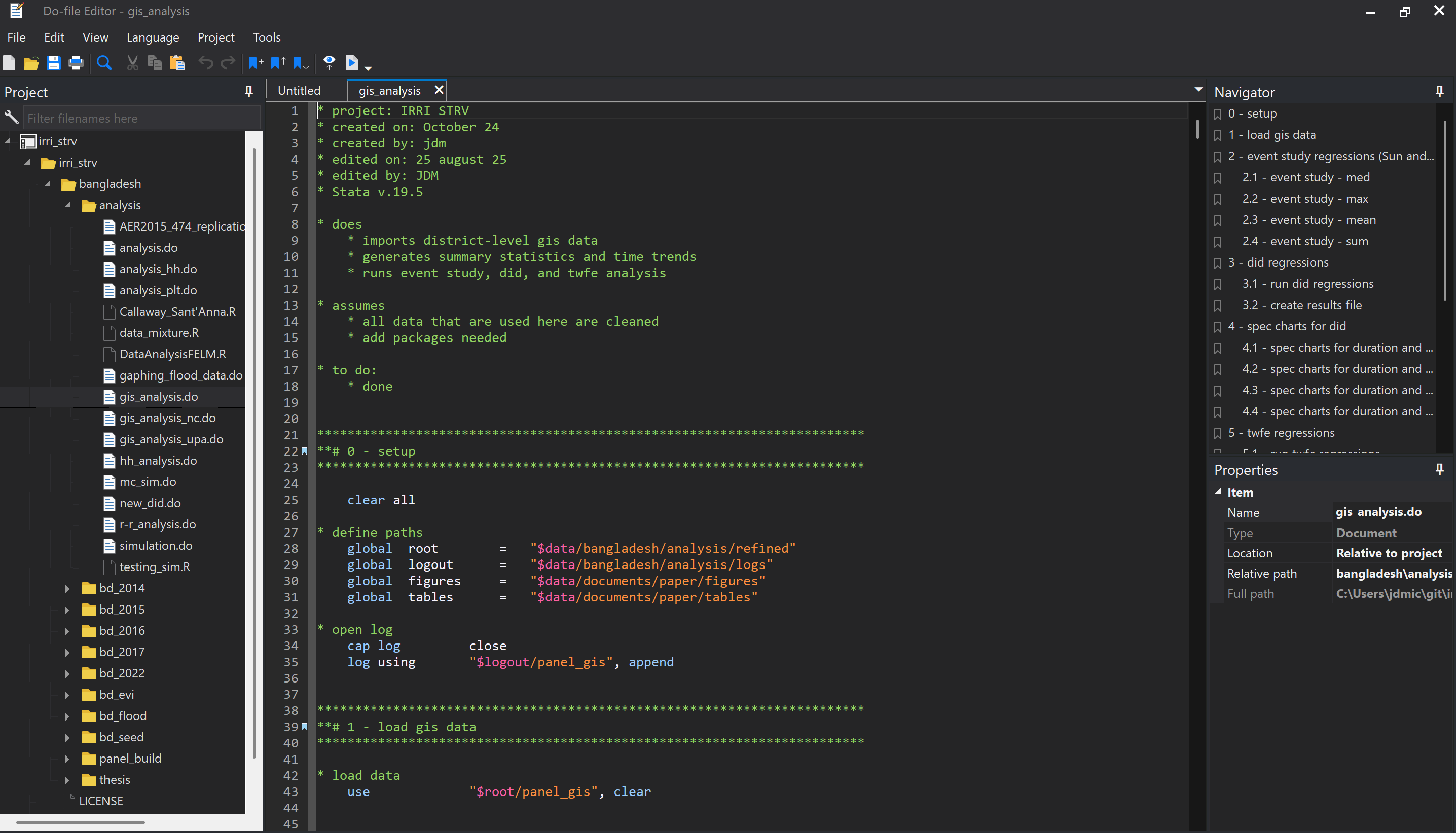
- On the left is the Project Window
- Lists all the folders and files in the project
- Like file explorer or finder in Windows or Mac
- In the center is the
.dofile editor- Where you write and execute your code
- Can open multiple tabs
- Can drag files for split screen views
- On the top right is the Navigator Window
- Shows the bookmarks in a
.dofile - Assuming you use bookmarks (per the style guide)
- Allows for quick jumping from section to section
- Shows the bookmarks in a
- On the bottom right is the Properties Window
- Shows info about the current
.dofile - Displays both the relative path
- And the absolute path
- Shows info about the current
Keep data and code segregated
- In most coding classes, the next step would be to put the data in the same directory as the project file
- This is simple, because then data and code all live in the same location on your computer
- BUT…
- A cardinal rule of creating a reproducible workflow is that data is immutable
- Do not ever edit your raw data
- Because of this, I highly encourage you to keep data and code in separate locations on your machine and in the cloud
Sharing code
- This idea of projects as folders is also important for how we share code
- Version control works with the projects as folders structure
- We can also zip a the project folder and send it to someone else and they can work with it
Summary
- Paths dictate exactly where Stata looks for or saves files on your computer.
- Use structured directories and relative/absolute paths to organize your project.
- Robust path management is required to collaborate effectively across different computers.