Introduction
Who has a directory on their computer with a bunch of filenames that look like these?
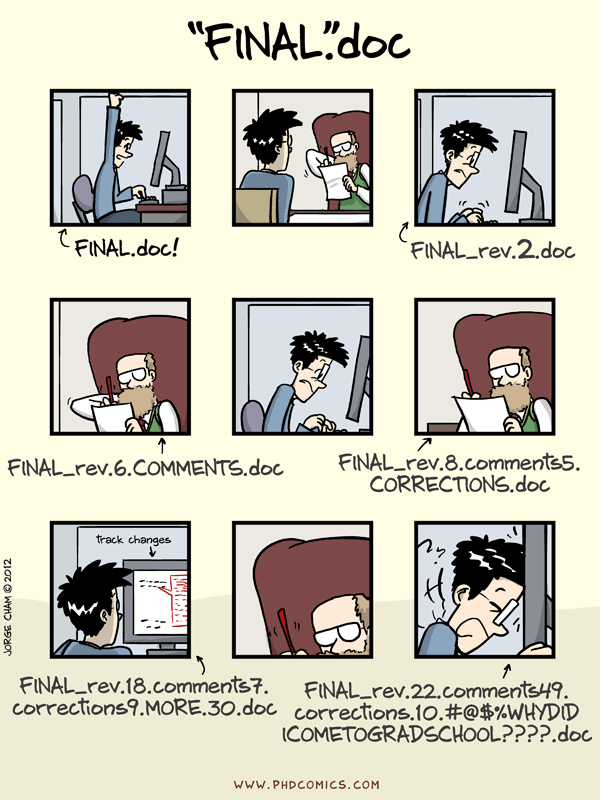
And how about one that looks like this?
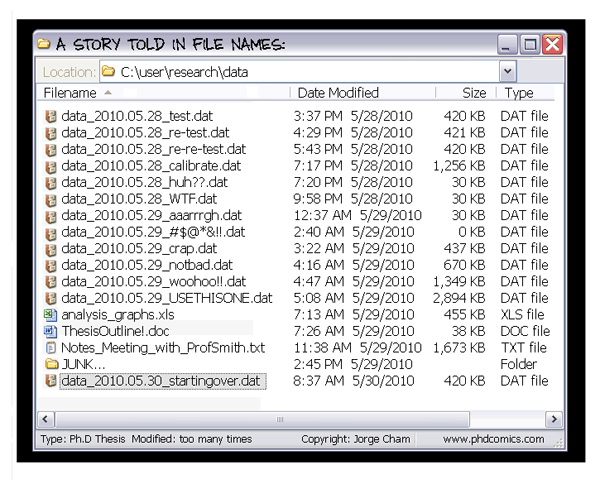
What we’re going to learn about today is how to get rid of folders like this and keep the same kind of backup and change information in a more useful way.
Version control gives you a better way to track changes to things like data files and code in a more manageable way. That’s important because when the reviews come back on your paper and ask you to perform some additional analyses and you open up this directory, it can be pretty difficult to figure out which file you should actually use. At the very least you’ll spend a bunch of extra time figuring it out before you get to work, but I’ve also certainly picked the wrong file and had to redo all of my work after I finally realized I wasn’t getting the same results as in the submitted version of the manuscript.
Benefits of version control
- Track changes on steroids
- Tracks every change ever made in groups called commits
- Every commit stores the full state of all of your files at that time
- Never lose anything
- Easily unbreak your code/data/manuscript
- No more file name changes
- Collaboration
- Work on things simultaneously
- See what changes others have made
- Everyone has the most recent version of everything
Git
Git is a version control system that intelligently tracks changes in files. Git is particularly useful when you and a group of people are all making changes to the same files at the same time.
Typically, to do this in a Git-based workflow, you would:
- Create a branch off from the main copy of files that you (and your collaborators) are working on.
- Make edits to the files independently and safely on your own personal branch.
- Let Git intelligently merge your specific changes back into the main copy of files, so that your changes don’t impact other people’s updates.
- Let Git keep track of your and other people’s changes, so you all stay working on the most up-to-date version of the project.
How do Git and GitHub work together?
When you upload files to GitHub, you’ll store them in a “Git repository.” This means that when you make changes (or “commits”) to your files in GitHub, Git will automatically start to track and manage your changes.
There are plenty of Git-related actions that you can complete on GitHub directly in your browser, such as creating a Git repository, creating branches, and uploading and editing files.
However, most people work on their files locally (on their own computer), then continually sync these local changes—and all the related Git data—with the central “remote” repository on GitHub. There are plenty of tools that you can use to do this, such as GitHub Desktop.
Once you start to collaborate with others and all need to work on the same repository at the same time, you’ll continually:
- Pull all the latest changes made by your collaborators from the remote repository on GitHub.
- Push back your own changes to the same remote repository on GitHub.
Git figures out how to intelligently merge this flow of changes, and GitHub helps you manage the flow through features such as “pull requests.”
Github workflow
The Github workflow involves several steps and takes some time getting use to. It is not hard, it just requires practice.
Assuming you have already cloned the course repo and created a branch titled with your last name, the basics of the workflow are:
- Open Github Desktop
- Make sure you are in the correct repo (semester26) and on the correct branch (
your last name) Fetchorigin to ensure your branch is up-to-date- Start coding!!!
- Save your work
- When you are done with your code session,
committo your changes- You need to provide a brief but clear description of what you did
- Github will not save your work until you commit
Pushyour commits
That’s it!!! Following these steps ensures that your work is saved and tracked and synched to the cloud. If you do these steps right and do them every time you will never lose your work and you will always be able to go back and undo any mistakes
- Green lines with pluses are what we’ve added
- Red lines with minuses are what we’ve deleted
- Yellow dots show files we have changed
- Show that you can go back in time
Advantages
- Easily follow what we’ve done over time
- Easy to both know what we’ve done
- Easy to fix things if we break them
- Easy to rerun your code from 3 months ago to make sure the code still does the
same thing
- At some point you will have code that works one day, you change a few things that shouldn’t hurt anything, and then a couple of days later the code won’t run
- Git allows you to rewind back to where things worked
Collaboration
- Work on things simultaneously (this is important for the replication project)
- See what changes others have made
- Everyone has the most recent version of everything
Summary
- Version control replaces messy file naming conventions (like ‘final_v2.doc’).
- Git allows collaboration, tracking, and reverting changes effectively.
- GitHub provides a cloud-based backup and sharing layer for Git repositories.